


Complete Guide: Block Automatic Forwarding & Stop Spoofing with the "External" Tag in Exchange Online

Why Block Automatic Forwarding matters
Invoice‑fraud gangs thrive on mailbox rules that silently forward email to outside addresses. Once forwarding is in place, an attacker can watch quotes, alter bank details, and spoof replies for weeks before anyone notices. Exchange Online gives you two built‑in defenses:
Block Automatic Forwarding to all external destinations.
Add the bright “External” banner so users spot impostor mail at a glance.
Below you’ll find the click-by-click configuration based on Microsoft’s official guidance.
1 – Audit who’s already forwarding
Exchange admin center ➜ Reports ➜ Mail flow ➜ Auto‑forwarded message report.
Export the results and share them with finance and leadership so any legitimate forwarding can be whitelisted.
2 – Turn off external forwarding in your outbound spam policy
Microsoft Defender portal ➜ Email & collaboration ➜ Policies & rules ➜ Threat policies ➜ Anti‑spam.
Open Anti‑spam outbound policy (Default).
In Automatic forwarding, choose either:
Off – Forwarding is disabled (recommended), or
Automatic – System controlled (equivalent to Off).
Save.
Tip: Create a custom outbound policy for service accounts that truly need forwarding.
3 – Enable the "External" tag in the mailbox experience
To enable external tagging using PowerShell:
Connect to Exchange online using Connect-ExchangeOnline.
Run the following PowerShell command: Set-ExternalInOutlook -Enabled $true
Every external message now shows with an External tag.
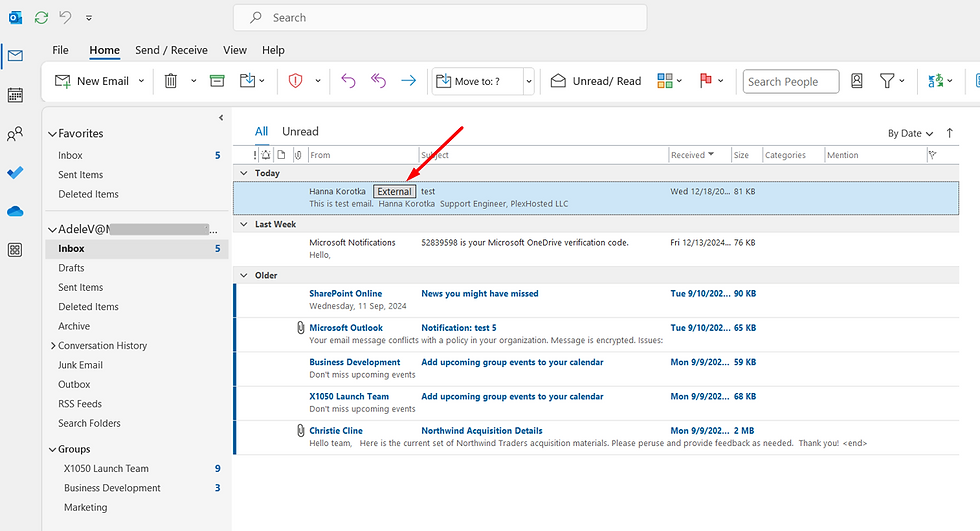

Outcome
With two clicks in Exchange Online you’ve cut off the attacker’s favourite stealth channel and given staff a visual cue that helps them question spoofed mail. No third-party gateway required.
How PlexHosted keeps your tenant locked down
PlexHosted delivers end‑to‑end security and IT management for Microsoft 365, Azure, and Intune. We design your zero‑trust architecture, deploy best‑practice controls, and keep every workload—email, identity, endpoints, and data—continuously protected and compliant.


Comments